
Tool Overview
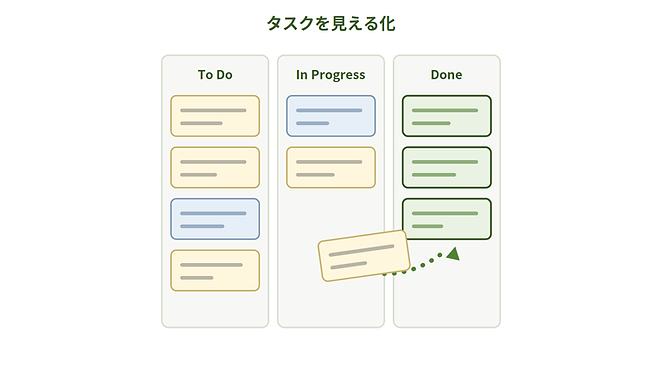
A progress-management tool that turns your team’s tasks into one card each and posts them in three columns—To Do / In Progress / Done. Through the “transparency” of everyone seeing the status of all work, duplication and neglect decrease, and much of the back-and-forth of asking about and reporting progress becomes unnecessary. You can start in minutes with a wall and sticky notes, or with Miro.
Users & Use Cases
Dividing daily work and sharing progress
Checking progress at regular meetings
Task management in the final push before the main event
Tool Level
Beginner
-
About tool levels - Beginner: No prior study required; usable with this Practice Guide alone. - Intermediate: Assumes prior study of the related framework through separate training. - Advanced: Assumes prior hands-on practice of the related framework, or advanced expertise in a specific knowledge area.
Prerequisites & Notes
You can start with a whiteboard and sticky notes, or Miro (free up to a certain range). No special knowledge is needed. Place the board where everyone can see it at every meeting.
-
■ Significance & features
In activities that involve the community, progress management tends to become vague. Who did what and how far—you can find out if you ask, but not if you don’t. Yet if you try to make a progress chart and manage it strictly, updating the chart itself becomes work, too heavy to keep up alongside daily activity.
If management stays vague, two people may separately start the same task, a task no one has touched may be discovered right before the main event, or no one may notice a task that is actually stalled despite an answer of “I’m on it.”
The Kanban board is a very simple progress-management tool that threads the space between “vague causes accidents, strict doesn’t last.” Make each task a card and post it in three columns—To Do, In Progress, Done. That’s all you do. The keywords are transparency, openness, and information sharing. Just having one open board where the status of every task is visible to everyone removes much of the back-and-forth of asking about and reporting progress.
The tools can be a wall and sticky notes, or an online whiteboard like Miro. Setup takes just a few minutes.
■ How to use
(When to use it)
You use this tool in the execution stage of an activity. It shows its power in dividing daily work, checking progress at regular meetings, and the final push before the main event. Everyone on the team looks at the same board and moves their own cards themselves.
We recommend a wall (whiteboard) and sticky notes, or an online whiteboard like Miro. Online is convenient for teams that find it hard to gather in one place. We do not recommend managing it on slides such as PowerPoint, because as tasks increase, moving cards becomes cumbersome.
(How to make the board)
Make three columns: To Do, In Progress, Done. Make one card per task, and on the card write “who, what, by when.”
Color-coding cards by type of work or by owner makes any imbalance in the workload visible at a glance.
(Three rules for operation)
・The owner moves their own card: you update the status of your own work yourself. Not moving others’ cards without permission builds trust in the board
・Update at each regular meeting: at the start of the meeting, everyone moves their own cards, and you check progress while looking at the board. Making updates “a set with the meeting” keeps it going effortlessly, and time spent listening to reports turns into time spent discussing countermeasures
・Limit In Progress: keep the cards in In Progress to one or two per person. If you put everything into “In Progress,” nothing actually moves forward
(Column: the online whiteboard “Miro”)
Miro is an online whiteboard where multiple people can edit a large workspace at the same time, usable for free up to a certain range. Draw three lines on the board to make columns, place sticky notes, and you can start a Kanban board right away.
Hand out the board’s share link to members, and everyone can see the same board even from separate locations. In class (Advanced Project Management), each team shares the progress of its coursework on a board in Miro.
(Materials used) *See the “Download” materials
The guidance (“Kanban Board Guidance”) is a participant-facing document to hand to the members of your activity. It walks through everything from how to make the board to the three rules of operation, in slide form.
The worksheet / detailed explanation (“Kanban Board Worksheet”) contains the steps to set up a board (making it on a wall / making it in Miro), samples of how to write cards, and an operation checklist.
■ Track record & usefulness
The Kanban board originates in the “kanban” of the Toyota Production System, passed through agile methods in software development, and has now become a standard method for team task management across all industries. It is also introduced as a basic team-operation tool in the agile primer materials of the PMI (the U.S. Project Management Institute).
The content of this guide is used in the APU courses “Field Practicum” and “Advanced Project Management.” In Advanced Project Management, each team sets up a board in Miro to share coursework progress; in Field Practicum, it is used for the daily task management of community-partnership projects. Making the status of work open reduces duplication and neglect, and turns meetings from a “place to report” into a “place to consult.”
■ Next steps
(Growing the columns)
Once you are used to it, try adding a Backlog (someday) column at the far left. This is a four-column operation where you first pool tasks you think of in the Backlog and move only the ones you decide to start into To Do. In class (Advanced Project Management), we also run this four-column version with a Backlog. You can grow the columns to fit your team’s reality, such as adding an “awaiting review” column.
(Connecting with other guides)
If you are using the practice guide “Network Diagram” to plan your activity, you can turn the list of tasks written out there (with owner and deadline) straight into cards in the To Do column. Also, if you do a retrospective (practice guide “How to ‘Reflect’ in a Project”) at activity milestones while looking at the cards piled up in the Done column, the bundle of finished cards becomes a record of the activity itself, and material for handover to the next cohort.
■ Glossary
・Kanban board: a board that turns tasks into cards and manages them in status columns (To Do / In Progress / Done). Its essence is “transparency”—the status of all work is visible to everyone
・In Progress: work that has been started but not finished. The fewer cards you keep here, the faster the flow of work
・Backlog: a place for “someday” tasks. A column to first pool what you think of; add it at the far left once you are used to it
・Scrum board: a name used with almost the same meaning as Kanban board. It derives from “Scrum” in agile development, and our course materials use this name
Track Record
Used in the APU courses “Field Practicum” and “Advanced Project Management”
-
Authors & Contact
Eiji Kano (Senior Researcher, Institute of Administrative Information Systems; Associate Professor, Ritsumeikan Asia Pacific University)
-
Date Published
August 2026
-
Please use this guide and its downloadable materials in accordance with the “Campus Toolbox Terms of Use”.
Contact
We use your feedback to improve the site and its content. We welcome your comments, requests, and impressions.
If you would like to take your initiative to the next level, feel free to reach out—we can connect you with the content's creators.